
Screen Recorder - XRecorder
InShot Inc.Video Players & Editors
4.7118.19K Reviews
- Version
- 2.5.5.1
- Installs
- 100.00M
- Age Rating
- Everyone
Screenshots
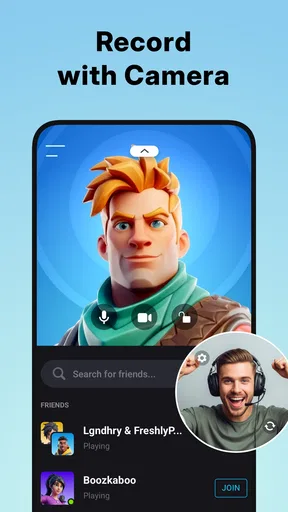
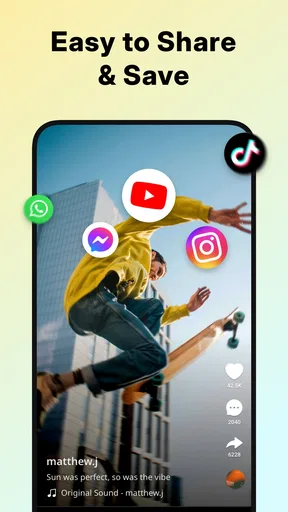
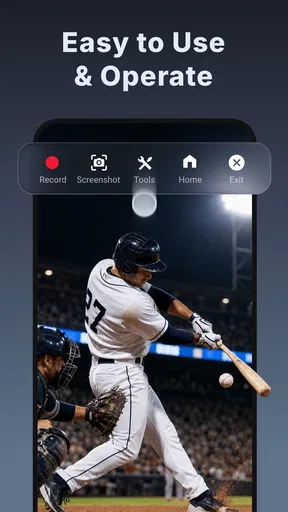
Our Review of Screen Recorder - XRecorder
 Analysis by Appyee
I judge a screen recorder less by its feature list than by what happens when I use it for something I cannot easily repeat: a game run, a quick walkthrough, or a small problem I need to show someone. Screen Recorder - XRecorder, made by InShot Inc., is aimed at that practical kind of capture. It is a free Android video-recording and editing app, and its appeal is straightforward: record what is happening on the screen, make a few changes, then share the result without building a complicated workflow around it.
There is a trust question with any app that captures a screen. A recording can contain messages, account details, or other private material, so I treat starting a capture as a deliberate choice rather than a harmless background action. XRecorder’s visible controls matter for that reason: a floating control can make recording easier to manage, but it also means I should check what is on screen before I tap start. I would not record a sensitive account page and assume the finished clip is private simply because it began as a screen capture.
What the app is good at, and where caution matters
The app is listed for everyone and has a 4.7 average from around 7.5 million ratings, with more than 100 million installs. Those figures suggest that screen recording is a common, well-understood use case for it, but they do not tell me whether a particular recording is suitable for sharing. My practical advice is to review the whole clip before sending it: notifications can arrive mid-recording, and a tutorial or gameplay video can reveal more than the moment you meant to show.
I also keep the recording itself in mind as a file that may be large or awkward to pass along, especially when image quality is a priority. A short clip for a friend and a polished demonstration do not need the same settings. Choosing a sensible capture quality before starting is more useful than recording everything at the highest level by default; it helps balance clarity against storage and makes sharing less of a chore.
Controls that keep a recording manageable
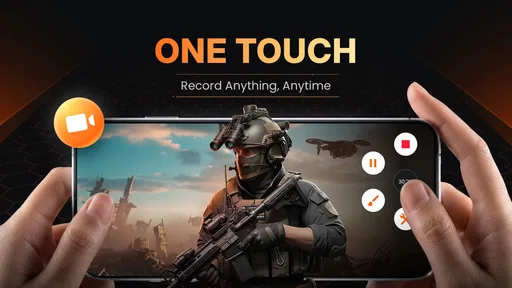
The floating window is one of the more useful details in everyday use. It lets me start or stop a capture without leaving the screen I want to record, which is convenient when demonstrating a sequence of taps or trying to catch a brief in-game moment. That convenience also calls for a quick check: I make sure the control is positioned where it will not cover an important button, and I stop the recording as soon as the useful part is over rather than leaving it running while I switch to unrelated apps.
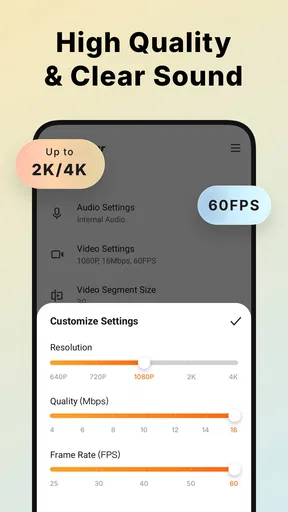
Resolution, bitrate, and frame rate give the app more flexibility than a bare one-button recorder. I would adjust them with the purpose of the clip in mind: readable text in a tutorial needs a different balance from fast movement in gameplay. If I am not sure, a short test recording is a better way to judge the result than discovering after a long session that the picture is hard to follow or the file is bigger than I wanted.
Editing and sharing without losing track
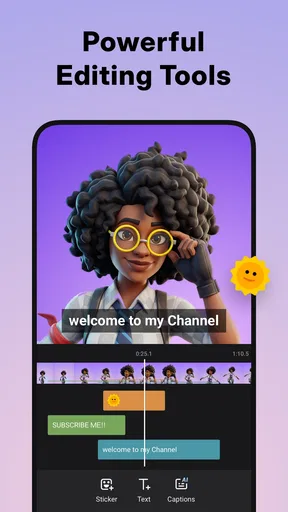
The built-in editor covers useful finishing work such as trimming, adding music, changing playback speed, and placing text or stickers. That is enough for many casual clips, but I see it as a quick-editing layer rather than a replacement for a dedicated video editor. A longer lesson, a carefully paced presentation, or a project needing precise audio work may be easier to finish in a tool designed for more detailed editing.
The gallery gives recordings a home inside the app, which helps when I want to find a clip without hunting through unrelated photos. Before sharing, I would watch the trimmed version from beginning to end, check that the text is legible, and make sure the music or stickers do not distract from the point. Sharing through another app is convenient, but it is still my choice where the video goes and who can see it.
Who should consider it
XRecorder makes the most sense for people who want to capture gameplay, show someone how to use a feature, or save a brief on-screen demonstration and tidy it up immediately. It is less compelling if I need a full production suite, detailed timeline editing, or a workflow built around professional post-production. In those cases, recording with a familiar device tool and editing in a dedicated editor may be a better fit.
The current version is 2.4.9.1 and it requires Android 8.0 or later. The app is free to download, with in-app purchases ranging from $0.99 to $49.99 per item. I would treat optional purchases as a decision to make only after trying the everyday capture and editing flow: paying does not automatically make a clip more useful, and the right choice depends on whether the available tools meet your needs.
For trust-conscious use, I would keep the workflow simple: decide what needs capturing, check the visible screen for private information, record only as long as necessary, then review the saved clip before sharing it. Those habits are more important than any promise of convenience. XRecorder gives me accessible controls and a way to make basic edits in one place, while still leaving the important decisions—what to capture, keep, and send—with me.
Ever tried capturing a moment on your screen and ended up with a blurry, glitchy mess? Trust me, I’ve been there. That’s when I stumbled upon Screen Recorder - XRecorder. It’s like finding a hidden gem in the app store. Let me walk you through my experience with it, and maybe you’ll see why it’s become my go-to app for screen recording.
Getting Started with Ease
First things first, downloading Screen Recorder - XRecorder was a breeze. A quick search in the app store, and I was ready to go. What struck me immediately was the user-friendly interface. Now, I'm not the most tech-savvy person, so having an app that didn’t make me feel like I needed a tech degree was a huge relief.
Setting up the app took no time at all. Just a couple of permissions to allow the app to access my screen and that’s it! I was all set to start recording. The app doesn’t bombard you with unnecessary jargon or settings, which is perfect if you just want to get started without a fuss.
Amazing Features at Your Fingertips
So, what makes this app stand out? Let me tell you, it’s packed with features that are both practical and easy to use. One feature I absolutely love is the ability to record in high definition. You can choose your resolution, bitrate, and frame rate, which means you can go from recording something quickly for a friend to crafting a high-quality tutorial video.
Another handy feature is the floating window. This little guy lets you start and stop recordings without having to jump back into the app. It’s discreet and doesn’t get in the way, making it ideal for gamers or anyone who needs to capture something on the fly.
Editing on the Go
Once you’ve got your footage, the built-in editor lets you trim your videos, add music, and even tweak the playback speed. I found this super helpful for removing awkward pauses or adding a personal touch to my recordings. No need to download another app just to make a few simple edits.
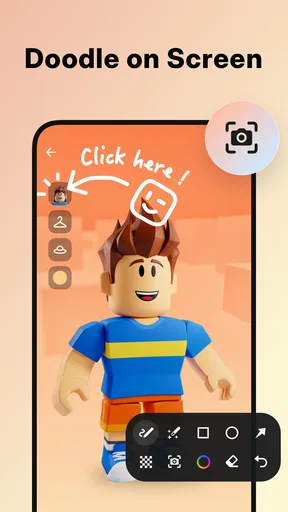
And if you’re anything like me, you’ll appreciate the ability to add text and stickers. It’s a fun way to personalize your videos or add instructions and comments without having to explain everything verbally.
Sharing Made Simple
Once you’re happy with your masterpiece, sharing it is as simple as tapping a button. The app seamlessly integrates with social media platforms, email, and messaging apps. So whether you want to share your gaming triumphs on YouTube or send a quick tutorial to a friend, XRecorder makes it hassle-free.
The app also offers a gallery for managing your recordings, which I found incredibly useful. It keeps everything organized, so you don’t have to scroll through your entire photo library to find that one video you recorded last week.
Why I Keep Coming Back
Let’s be honest, a lot of screen recording apps promise the world but fall short on delivery. It’s reliable, intuitive, and packed with everything I need without being overwhelming. Compared with the built-in recorder on a phone, XRecorder’s advantage is the combination of capture controls and quick edits in one place; compared with a full desktop or mobile editor, its advantage is speed, not depth.
A useful routine for a tutorial is to record the steps in one clean take, then trim the start and finish before adding text only where a viewer might otherwise miss a tap. For gameplay, I would do the opposite with text and stickers: keep the image uncluttered, and make a short test first to see whether fast movement remains clear at the chosen settings. These small choices make the same tools work better without turning a casual recording into a production project.
One everyday example is helping a relative change a setting. I can capture the route through the menus, cut away the moment before I begin and the pause after I finish, then send the concise clip rather than trying to explain each screen over a call. For that kind of task, an editor inside the recorder is genuinely convenient. If the instructions need voice narration, careful captions, or several separate scenes assembled in order, I would move to a more capable editor instead.
The recording controls are useful, but they do not remove the need to plan. I would silence or manage notifications before recording a private walkthrough, close unrelated screens, and check the playback before sharing. That is especially important when a clip is meant for a public post: a quick screen capture can include a notification or account detail that was not part of the intended demonstration. The app makes capture accessible; discretion still depends on me.
Choosing it over a basic recorder or full editor
For someone who only records occasionally, the phone’s built-in recorder may already be enough, particularly if the goal is simply to save a short clip and no editing is needed. XRecorder is more appealing when I want capture settings and trimming or annotations close at hand. A dedicated editor is the better choice when timing, layered sound, transitions, or a carefully assembled narrative matters. I see XRecorder between those options: more useful than a bare capture button for quick finishing, but intentionally less involved than a full editing workspace.
It is also not the right pick for every kind of creator. Someone producing long lessons may prefer a workflow with more precise control over narration and the final sequence. Someone who wants to record only an occasional moment and has no reason to edit may prefer the simplest tool already on the phone. I would choose XRecorder when fast setup and immediate cleanup matter more than advanced production controls.
A sensible first recording
On a first try, I would record a short sample rather than committing to a long session. That makes it easy to check whether the chosen resolution and frame rate suit the content, whether the floating control is out of the way, and whether the saved video is easy to locate in the app’s gallery. If the clip is for a message, I would keep it focused and brief; if it is a tutorial, I would check that each important action stays visible long enough for someone else to follow.
There is a small but worthwhile trade-off between maximum clarity and convenience. Higher capture settings can be useful when small interface text must remain readable, while a quick share does not always benefit from the largest, most detailed file. I would match the settings to the destination and the subject rather than treating maximum quality as the automatic choice. This also makes it easier to avoid filling a gallery with oversized takes that I never intended to keep.
Whether you’re a gamer, a teacher, or just someone who wants to share snippets of your screen, this app has got you covered. It is free to use, with optional in-app purchases if you want to unlock extra features. Its Everyone age rating makes the intended audience broad, though I would still guide younger users about what a recording may reveal before it is shared.
If you’ve been on the hunt for a screen recording app that’s not going to let you down, give it a try. I’m pretty sure you’ll be as impressed as I was. Happy recording! My cautious recommendation is for people who value quick capture and straightforward edits, and who are willing to review a clip before sending it. It is an approachable tool for everyday screen videos, not a substitute for a professional editing workflow or careful handling of private content.
Privacy and Permissions
See what permissions an app requests and how it handles your data.
- Device & app history
- read sensitive log data
- Identity
- find accounts on the device
- Contacts
- find accounts on the device
- Photos/Media/Files
- read the contents of your USB storage, modify or delete the contents of your USB storage
- Storage
- read the contents of your USB storage, modify or delete the contents of your USB storage
- Camera
- take pictures and videos
- Microphone
- record audio
- Wi-Fi connection information
- view Wi-Fi connections
- Other
- view network connections, pair with Bluetooth devices, expand/collapse status bar, full network access, close other apps, reorder running apps, draw over other apps, control vibration, prevent device from sleeping, install shortcuts, uninstall shortcuts, Google Play license check
Verdict
Strengths of Screen Recorder - XRecorder
- User-friendly interface for easy navigation.
- High-quality video recording up to 1080p.
- No watermark on recordings by default.
- Supports external audio recording.
- Offers built-in video editing tools.
Limitations of Screen Recorder - XRecorder
- Contains ads which can interrupt usage.
- Limited features in the free version.
- Requires in-app purchases for premium.
- May consume significant battery power.
- Lacks cloud storage integration.
Other Releases by InShot Inc.
View All
All Video Downloader
Video Players & Editors4.7

Video Downloader
Video Players & Editors4.7

Music Player & MP3 Player
Music & Audio4.7

Video Player All Format
Video Players & Editors4.8
Similar Picks in This Category
View All
Google TV
Google LLC3.9

iTunes
Apple4.7

YouTube
Google LLC3.8

MX Player
Amazon Mobile LLC4.2

CapCut - Video Editor
Bytedance Pte. Ltd.3.5

PLAYit-All in One Video Player
PLAYIT TECHNOLOGY PTE. LTD.4.5
You May Also Like
View All
Frequently Asked Questions
What features does Screen Recorder - XRecorder offer?
Screen Recorder - XRecorder provides a comprehensive suite of features including high-quality screen recording, video editing tools, and the ability to capture audio simultaneously. Users can also take screenshots and record gameplay without time limits or watermarks, making it ideal for both casual users and content creators.
Is Screen Recorder - XRecorder free to use?
Yes, Screen Recorder - XRecorder is free to download and use with basic features. However, it offers in-app purchases to unlock premium features such as ad removal and advanced editing tools. The free version is sufficient for most users, but the premium version offers a more enhanced experience.
Does Screen Recorder - XRecorder affect device performance?
Screen Recorder - XRecorder is designed to be lightweight and efficient, minimizing its impact on device performance. However, like most apps that require significant processing power, users may notice a slight decrease in performance on lower-end devices, especially when recording high-resolution videos.
Can I edit my recordings within the app?
Yes, Screen Recorder - XRecorder includes basic editing tools that allow users to trim, cut, and add music or text to their recordings. While it offers essential editing features, users seeking more advanced editing capabilities might need to use additional software or opt for the app's premium version.
Is Screen Recorder - XRecorder safe to use?
Screen Recorder - XRecorder is generally considered safe and reliable. It is available on official app stores like Google Play and the Apple App Store, and it adheres to privacy and security standards. Always ensure your device's security settings are up-to-date to maintain optimal safety while using any app.
